Bookmarks  in ART are lists of keys (paths) of the Registry. in ART are lists of keys (paths) of the Registry.
|
| You can create as many bookmark lists as you like and use them depending on your current task.
|
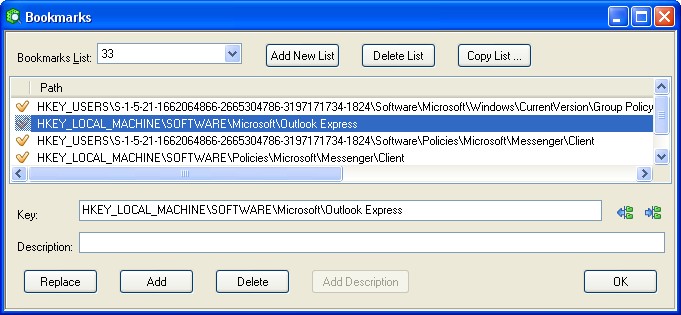
| You can view and edit any key in the Bookmarks window. Any changes you make to a list are displayed in its tree simultaneously and vice versa.
|
|
|
|
|
|
|
|
| The following operations are possible for a current list:
|
| 1) There are two possible ways of adding a key into a list:
|
|
|
- Highlight the desired key of the tree in the main window, right-click it and use the function Mark key from the context menu. The chosen key will be marked with a checkmark icon  . .
|
| - Specify the key (path) in the Key field of the Bookmarks window and click the Add button.
|
|
|
| If you want to save the marked or excluded data, you should create a new List (see below).
|
|
|
| 2) There are also three possible ways of removing a key from a list:
|
| - Unmark the marked key by using the function Mark key.
|
| - Highlight the key in the list of Bookmarks window, right-click and select Delete.
|
- You can unmark all the marked subkeys of the active key by clicking the button  UnMark All Subkeys. UnMark All Subkeys.
|
|
|
| 3) Replacement. This is the way you can edit the path or description of a highlighted key. Make the changes you want to the Key and/or Description fields of the active key in the Bookmarks window, then click Replace to apply the changes.
|
|
|
| 4) You can add or edit the description of the active key in the Description field by clicking the Add Description button.
|
|
|
5) To view all marked subkeys in the active key, click the button  Expand Marked Keys. Expand Marked Keys.
|
| Having marked a key in a particular tree, you also easily mark all the keys with the same paths in other trees.
|
|
|
| The following operations with lists are possible:
|
| 1) You can create a new list by entering a new list name into the Bookmarks field in the Bookmarks window. Use the menu item Edit | Bookmarks to open the window, click the button Add New List, enter the name of the new list in the List Name window that appears on your screen, and confirm it.
|
| If you don't enter a name, the list you create won't be saved until the next session. This might be helpful if you want to create a temporary list only for the current session and don't want to have to delete it later.
|
|
|
| 2) You can delete the active list in the Bookmarks window (the active list is shown in the Bookmarks field) by clicking the Delete List button.
|
|
|
| 3) You can copy the active list by clicking the Copy List button.
|
|
|